
3.8 Prepare and use reference materials
Manage reference content in Library, then link the required materials to a business area, colleague, or task. Uploading a file does not by itself authorize every colleague to read it.
Add materials
Use the add or import option, and provide a clear title and text or a file. Record the source, date, and version. Do not overwrite different versions under the same filename without explaining what changed.
For a first exercise, use a short document without personal information. After uploading, open the item to confirm its content, file status, and ownership, then choose what to link it to.
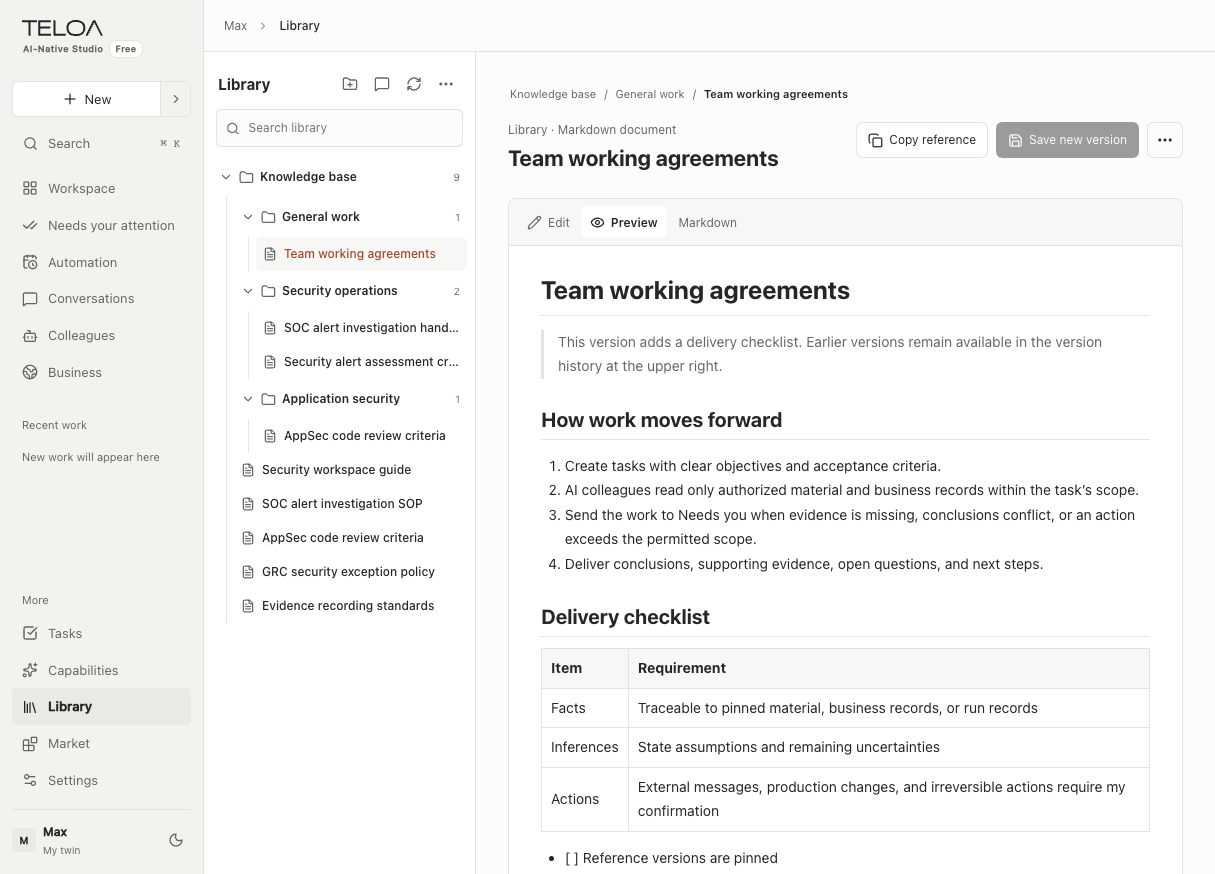
English interface with sample data. Expand materials by business area on the left and check the document body on the right. Copy-reference and save-new-version controls appear above the document.
Use materials in a task
Specify the required materials when assigning work and ask for sources in the result. For group attachments, confirm that the upload succeeded before asking a colleague to read the file. Attachments and Library entries are stored differently; see group collaboration.
When a source changes or becomes unavailable
A task may pin a particular version or reference identity. If the source changes, is withdrawn, or is no longer permitted, follow the prompt to check the source again. Do not ask the model to guess missing content.
| Symptom | Next step |
|---|---|
| An item is visible but a task cannot read it | Check the task and colleague scopes, links, and permissions |
| A task still cites old content after an update | Check the version and reference pinned to this task, not just the filename |
| An attachment upload failed | Check the page for format, size, or network errors; confirm success before assigning the work |
| A result has no citations | Ask for sources and verify them against the original text |
Before deleting or withdrawing materials, check work that is using them. Do not import keys, authentication links, or unrelated private records into Library.